


I still remember the frustration I felt when I clicked the perfect photo… only to find out later it was sideways. Maybe it was a selfie, maybe a client’s document—doesn’t matter. What mattered was I had to fix it fast and didn’t want to deal with opening Photoshop or any bulky app.
That’s when I started using browser tools to change image orientation online. No installations. No learning curve. Just drag, flip, download—and done.
Today, I can confidently say I haven’t touched heavy software for this basic task in over a year. And trust me, once you experience how easy it is to flip or rotate an image online, you won’t look back either.
👀 The Real Reason I Needed to Flip a Photo
Let me paint you a picture. One morning, a client emailed me a scanned invoice to include in a presentation. It arrived upside down. Deadlines were tight. The thought of opening an app, waiting for it to load, rotating the image, then exporting… felt like a punishment.
So I Googled, found SmallToolHub’s Rotate Image Tool, uploaded the image, hit “Flip Vertically,” and in literally 10 seconds, I was done.
That’s when it clicked.
Why struggle when you can simply change image orientation online from any browser, on any device—even from your phone?
🤳 Flip or Rotate — What’s the Difference and Why It Matters
If you’re new to image orientation tools, let me break it down:
Flip Horizontally: Think of this like holding a mirror next to the image. It’s perfect for fixing selfies that look weird or flipping logos and graphics.
Flip Vertically: This turns your image upside down. Super helpful for scanned pages or when phone orientation messes things up.
I use both frequently. I once had a logo that was facing the wrong way in my website header—flipped it horizontally online, and it looked flawless.
But it’s not just flipping. Sometimes I need to change image angle slightly. And this same tool lets me rotate image to any angle like 45°, 90°, or even custom rotations.
No need for design software. No asking someone else for help. It’s all self-serve and incredibly fast.
🌍 Where I Use It Most — My Daily Life, Unfiltered
Here’s the truth: I didn’t realize how often I needed to change image orientation online until I started doing it casually and regularly. These are some real-life situations where it’s become a lifesaver:
👨🎓 For My College Notes
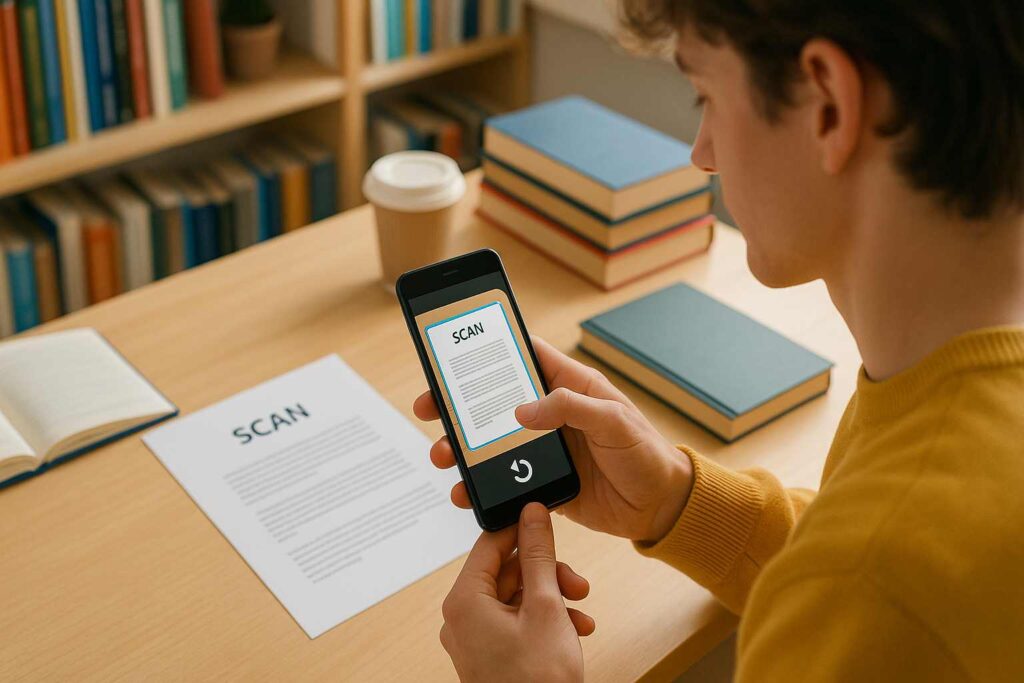
Sometimes I scan my handwritten notes with my phone, but they end up sideways or upside down. Instead of scanning again (which is annoying), I just flip or rotate them online and export the fixed version.
📱 For Instagram Stories & Reels
I once uploaded a reel thumbnail and didn’t realize it was flipped. Ruined the aesthetic. Now, before uploading, I double-check everything and use the rotate tool to turn image sideways or flip as needed.
💼 As a Freelancer
Whether it’s a client’s logo, invoice scan, or design asset, I often need to tweak something before submitting it. And the time saved by using an online tool versus opening Illustrator? Priceless.
🖼️ For My Blog and Portfolio
Sometimes images don’t fit the layout as-is. A quick flip or 90° rotate solves the issue. I even used the tilt image online tool to adjust a crooked product shot last week. Looked 100x more professional.
🧰 Why I Stopped Using Installed Software
I get it. We all grew up with apps like Photoshop or GIMP. But honestly? They’re overkill for something this simple.
Here’s a quick comparison from my experience:
| Task | Traditional Software | Online Tool |
|---|---|---|
| Load time | 30+ seconds | 3 seconds |
| Cost | Expensive | Free |
| Works on phone? | No | Yes |
| Needs training? | Yep | Nope |
| Flip/Rotate options | Buried in menus | Front and center |
Every time I want to change image orientation online, I now skip the desktop programs. They feel like dinosaurs for such a tiny but essential task.
⏱️ Productivity I Never Knew I Was Losing
I tracked my time last month. Just rotating or flipping images for work and content:
Rotating 10+ images manually in Photoshop took over 25 minutes
Using SmallToolHub’s tool for the same? 5 minutes max
That’s 20 minutes saved, and that’s just one week. Over a month or a year, it adds up in a big way. I didn’t even realize how much of my time was going down the drain until I saw the numbers.
🔁 Tilt, Rotate, Flip — It’s All Built-In
Here’s something I genuinely love. Most online tools only offer flip or rotate. But this one also includes:
Flip (horizontal/vertical)
90°, 180°, 270° rotation
Image tilt for crooked scans or creative needs
All of that happens right in the browser. I don’t need to open four different tools. I just load one tab and it covers all my needs.


📱 It Even Works on My Phone (And That’s a Big Deal)
Last week, I was at a coffee shop and got a call from a client: “Hey, can you flip that image and send it back in 5 minutes?”
I didn’t have my laptop. Just my phone.
So I opened the tool in Chrome, flipped the image horizontally, downloaded it, and sent it—all under 2 minutes.
Being able to change image orientation online from my phone has been a game changer. Especially for last-minute fixes on the go.

🧭 How I Use It — Step-by-Step
Here’s my personal workflow when I want to change image orientation online:
I head to SmallToolHub’s Rotate Tool
I drag and drop my image into the upload zone
Then, I either:
Hit “Flip Horizontally” or “Flip Vertically”
Or rotate to 90°, 180°, or use a custom angle
Preview the result (love this part)
Click “Download”
It’s done before I can even yawn. Honestly, it’s become muscle memory now.
❓ Frequently Asked Questions
1. Does flipping an image reduce its quality?
Not with this tool. It preserves the original image resolution unless you compress it manually.
2. Can I use it for professional projects?
Absolutely. I’ve used it to fix assets for client websites, product catalogs, and even presentations. Works great every time.
3. What if the image’s orientation looks fine but opens wrong on another device?
That could be due to Exif metadata, which stores rotation info. You can read more on Exif Wikipedia, but luckily, this tool lets you manually fix it without worrying about metadata quirks.
4. Can I use this tool offline?
It’s web-based, so you’ll need an internet connection—but no installations required.
5. Is it mobile-friendly?
Yes! I’ve used it on both Android and iPhone with zero issues. It’s fully responsive and touch-friendly.
Final Take – Why I’ll Always Flip Images Online
Look, I’m not saying Photoshop doesn’t have its place. But for quick, everyday fixes, there’s no reason to suffer through slow software or clunky apps.
The ability to change image orientation online has made me more productive, more efficient, and let’s be honest—less grumpy.
Whether you’re a student, a designer, a creator, or just someone who wants their pictures to look right, this tool is a must-have in your digital toolkit.

