

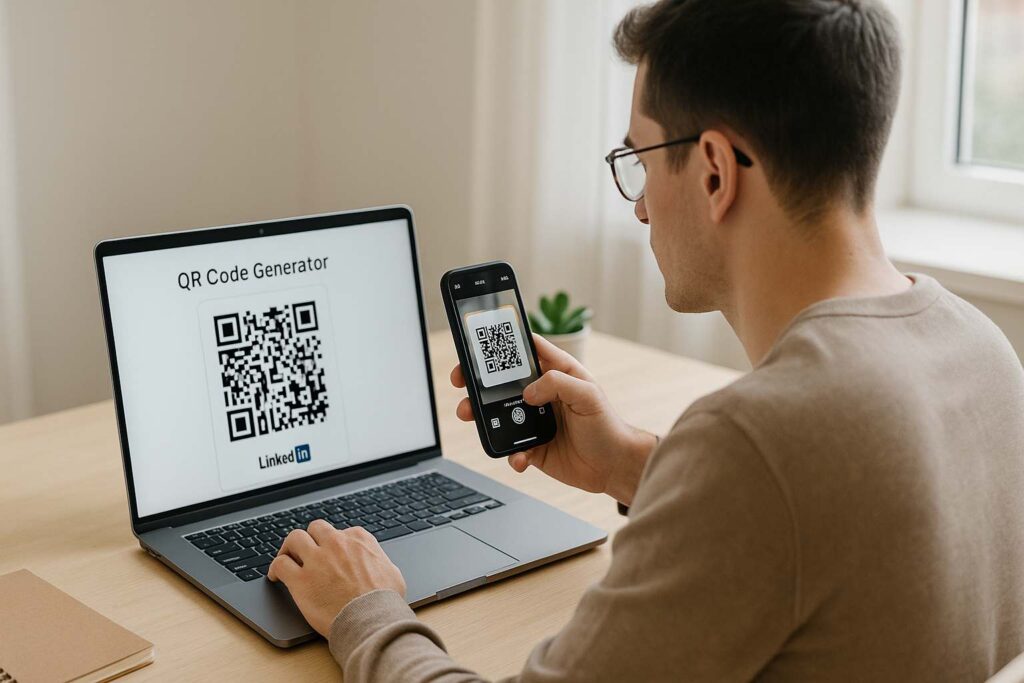
I remember my first job fair after college. I had freshly printed resumes and loads of nervous energy. But what I didn’t have was a quick way to share my LinkedIn profile. Every time someone asked for it, I had to type it out manually—or worse, spell it letter by letter.
That changed when I learned how to create QR code for LinkedIn profile. Now, one quick scan connects anyone directly to my profile—no awkward typos, no broken links, no missed opportunities.
Today, I’m walking you through how to create QR code for LinkedIn profile on both desktop and mobile. I’ll also show you where to use it, how to customize it, and why it’s such a smart move in 2025.
🚀 Why QR Codes for LinkedIn Are a Game-Changer
If you’ve never used a QR code to LinkedIn profile, you’re missing out on one of the simplest personal branding tools available. Here’s why I swear by it:
No one has to spell your name or search for you
Looks sharp on business cards, resumes, and portfolios
Saves time and reduces friction during networking
Whether you’re a freelancer, a student, or a designer, learning how to create QR code for LinkedIn profile is like adding a turbo boost to your career connections.
How to Create QR Code for LinkedIn Profile on Desktop
1. Copy Your Profile Link
Log into LinkedIn, click “View Profile”, and copy the URL. Mine looks something like:https://www.linkedin.com/in/nikhil-bhujeja/
2. Use a QR Code Generator (No Login Needed)
Head to this free tool: 👉 SmallToolHub LinkedIn QR Code Generator
What I love is that you don’t need to log in, download anything, or deal with spam. It’s clean, simple, and fast.
3. Paste the URL & Generate Your QR Code
Paste your profile link, click “Generate”, and in less than two seconds, you’ll see your QR code LinkedIn profile on the screen.
4. Download Your QR Code
Choose PNG for web/email, SVG for high-res printing. Add it to anything—from CVs to your personal website.

📱 How to Create QR Code for LinkedIn Profile on Mobile
I’ve been caught in more than one situation where someone asked for my profile and I didn’t have a business card. That’s when my phone saved the day.
Option 1: Use the LinkedIn App
Tap the search bar → tap the small QR icon on the right. Your QR code to LinkedIn is right there.
But here’s the problem: it’s basic. You can’t customize it. And sharing it in a neat format isn’t always easy.
Option 2: Use the Web Tool on Your Phone
Here’s the trick I use all the time. Open this tool in your phone’s browser. The interface is responsive (thanks to principles of responsive web design) and works great on mobile.
Paste your link → tap Generate → Save the code. Boom, your QR code LinkedIn profile is now in your pocket.

💡 Desktop vs App: Which Way is Better?
Honestly? It depends.
If you want something quick and basic, go with the app. But if you’re working on resumes, business cards, or want control over color, branding, and format, the desktop version wins hands down.
I’ve broken this down in my other guide: LinkedIn QR Code on Desktop vs App – Which is Better for You?
For my job applications, I always use the tool to create QR code for LinkedIn profile with my personal color palette. It just looks so much cleaner.
Who Needs a LinkedIn QR Code?
Let me tell you where I’ve seen these codes work wonders:
Freelancers: Add your QR code to LinkedIn profile on proposals
Students: Print it on your college resume
Designers: Place it in your online portfolio
Social Media Managers: Include it in your bio links
Job Seekers: Make it part of your signature and cover letter
I’ve even met someone at a conference who had their QR code to LinkedIn printed on a lanyard. Genius.
Once you learn how to create QR code for LinkedIn profile, you’ll realize how powerful such a small graphic can be.

Make It Match Your Brand
A plain black-and-white QR code is functional—but it’s not you. If you’re serious about branding, head over to this customization tool:
👉 Custom LinkedIn QR Code with Logo
With it, you can:
Add your company logo
Match your brand colors
Download formats for both print and digital
I use a custom code on my resume and email footer—it grabs attention and keeps things consistent.
Why I Recommend This QR Tool
Here’s why I always use SmallToolHub to create QR code for LinkedIn profile:
⚡ No login or signup
💾 Multiple formats
🎨 Branding features
📱 Mobile responsive
💼 Looks great on professional documents
Whether I’m updating my LinkedIn or sending out a new job pitch, this tool just works.
FAQs – Let’s Get Real
1. Can I use the same QR code if I update my LinkedIn profile?
Yes—as long as your profile URL stays the same, your QR code stays valid. If you change your LinkedIn username, though, you’ll need to create QR code for LinkedIn profile again.
2. Is it safe to use free online QR generators for LinkedIn?
Absolutely. Trusted tools like SmallToolHub don’t store any data. You paste the link, generate the code, and go.
3. Can I use my QR code internationally?
Of course. Anyone with a smartphone can scan your QR code to LinkedIn profile from anywhere in the world.
4. Does the app-generated QR look the same as custom ones?
Nope. The app version is static and basic. With tools like SmallToolHub, your QR code LinkedIn profile can be customized to match your brand.
5. What if I want to print it on my resume?
You can! Just download the code in high-resolution (SVG or PNG), resize it neatly, and place it at the top or bottom corner of your CV.
6. Why is mobile QR generation sometimes clunky?
That’s why responsive web design matters. Tools like SmallToolHub are built to work smoothly on mobile—thanks to responsive web design, you’ll never face layout issues.
7. Where do most professionals use their LinkedIn QR code?
Resumes, email signatures, websites, business cards, event badges—even presentation slides. Once you learn how to create QR code for LinkedIn profile, you’ll find dozens of clever ways to use it.
Final Thoughts
If you’ve made it this far, one thing’s clear—you care about your personal brand. And in today’s hyper-digital world, learning how to create QR code for LinkedIn profile is one of the smartest, simplest moves you can make.
It’s fast. It’s free. And it opens doors.
So go ahead, try it now:
👉 Generate Your LinkedIn QR Code
Your next opportunity might be just one scan away.


3 thoughts on “How to Create QR Code for LinkedIn Profile on Desktop & Mobile”
I really like what you guys are up too. Such clever
work and reporting! Keep up the wonderful works guys I’ve incorporated you guys to
blogroll.
If I’m skimmig the net, frequently I like too check oout content which I stumble on. In many
cases, I will come across frewsh knowledge, or possjbly a unique tool for viewing problems tha I hadn’t thought about before.
When this happens, I’m often grateful. Due to the
fact I might not have the opportunity to use
the internet a lot, attributable to my work as an at home
massage therapist,I seek too maximize my experiences oon the net.
Hi Dear, are you genuinely visiting this website on a regular basis, if so afterward you
will absolutely get nice experience.