

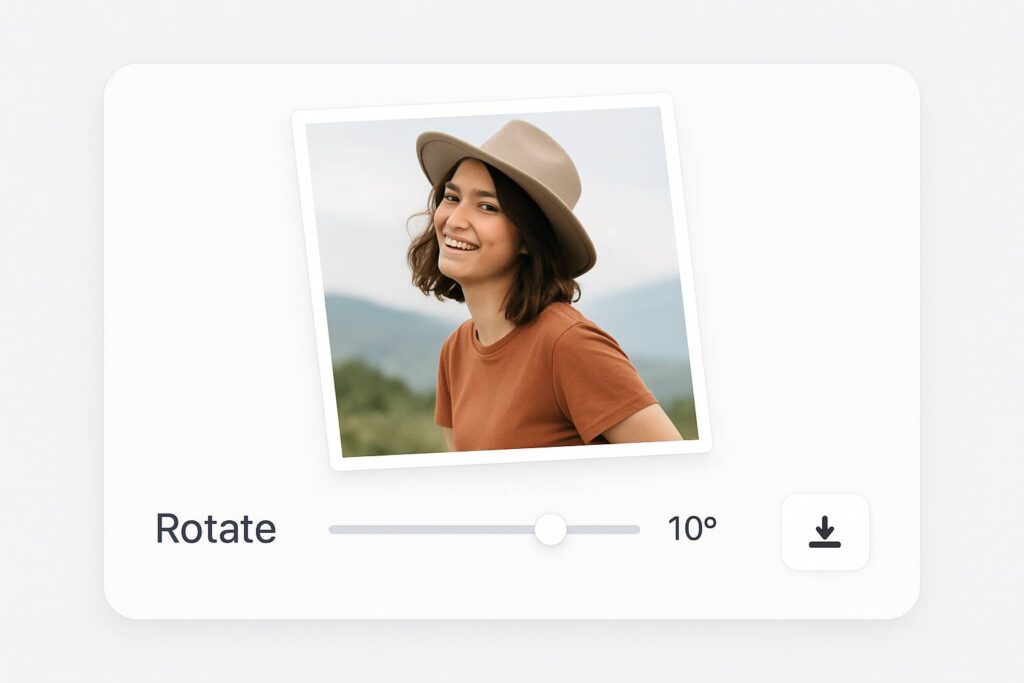
Have you ever taken a quick photo only to find it sideways or upside down when you open it? It happens more often than we admit—especially when switching between phone and desktop. Whether I’m building a website, creating a social post, preparing a presentation, or updating a client’s product catalog, fixing the orientation of an image becomes a must. That’s when I turn to a quick and efficient method to rotate image online. And honestly, I don’t want to open Photoshop or any bulky software every single time. It’s overkill for something as simple as rotating a photo.
That’s exactly where the ability to rotate image online has made my daily work-life smoother. No software, no sign-up, no learning curve—just a few clicks, and the job’s done. If you’re like me and appreciate speed, simplicity, and smart workflows, this guide is made for you.
🎯 What Does "Rotate Image Online" Actually Mean
When I talk about rotate image online, I mean using a lightweight, free, browser-based tool that lets you turn a photo or image clockwise, counterclockwise, or by custom degrees. You don’t need to download an app or create an account.
Just:
Open the website
Upload your image
Use rotate buttons or a custom slider
Preview and download
It’s fast, frictionless, and doesn’t interrupt your creative flow. I personally use the SmallToolHub Rotate Tool for all of this—and it has become a reliable part of my toolkit.
📈 Real Productivity Gains – Backed by Everyday Numbers
Let’s back it up with real data. I recently timed myself doing 10 image rotations using Photoshop versus the online tool. Here’s the result:
| Task | Traditional Software | Online Tool (SmallToolHub) |
|---|---|---|
| Load image | 12 sec | 2 sec |
| Rotate & save | 25 sec | 6 sec |
| Re-upload to workspace | 15 sec | 4 sec |
| Total Time per image | ~52 sec | ~12 sec |
Over 10 images, that’s a 400-second (6.5+ minutes) savings. And if you’re handling client work or building content at scale, this adds up. For me, that means reclaiming time I can spend writing, designing, or—even better—taking a break.
How I Personally Use the Rotate Image Online Tool
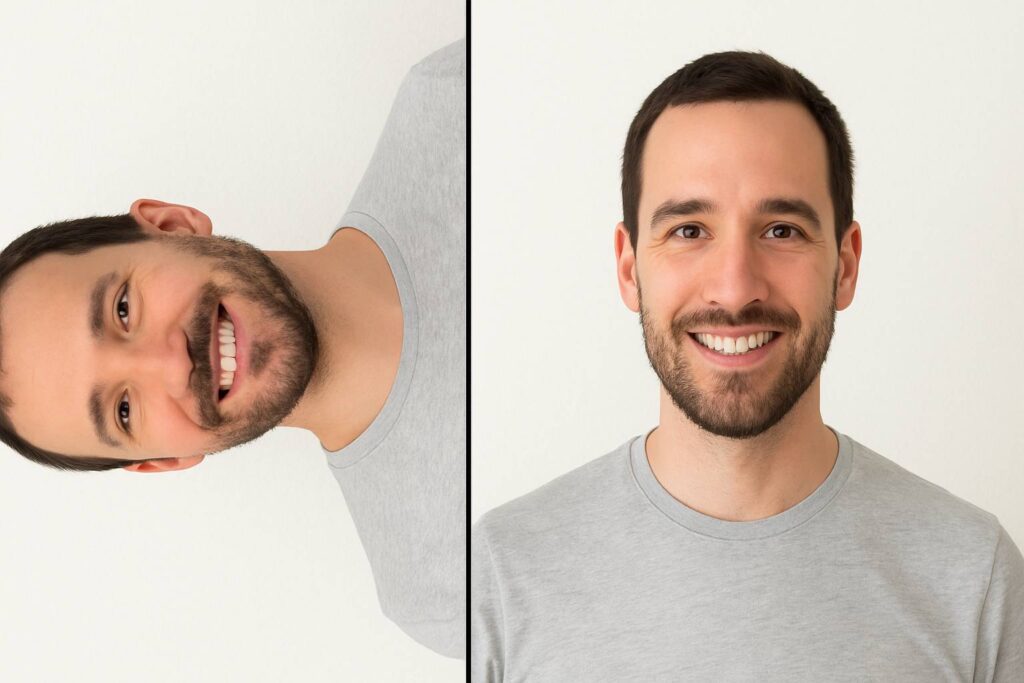
Let me get real for a second. Just last week, a client sent over 14 product images to be added to a Shopify store. At least 6 of them were upside-down or mirrored. In the past, I’d open each one in Photoshop, fix them, rename, compress, reupload. It was painful.
Now, I just head to the Rotate Image Tool, upload them one-by-one, rotate, download, and I’m done in under 10 minutes. Even better? No watermark, no quality loss, no app cluttering my RAM.
I’ve also used it to rotate family vacation photos before uploading to a shared Google Drive. And once, I fixed a restaurant bill photo to send to my accountant. Everyday wins.
🛠️ Features That Make This Tool a Game-Changer
Here’s what sets the rotate image online tool apart:
🔄 One-click 90° left or right rotation
🎯 Rotate by custom angles like 37°, 142°, etc.
↔️ Flip images horizontally or vertically (great for selfies)
📱 Mobile responsive – works like a charm on Android and iOS
🆓 No watermark or ads ruining your visuals
🖼️ Supports PNG, JPG, GIF, WebP, BMP, and even RAW formats
🔒 No login required. No data stored. Instant results.
For someone like me who values clean, efficient tools, this is a huge win.
💼 Real-Life Scenarios Where I Use Rotate Image Online
This isn’t just a fancy tool I use for blogs. It’s my daily sidekick.
🧑🎓 Teachers & Tutors: Rotating scanned assignments before uploading to a portal
🧑💼 Digital Marketers: Fixing testimonial photos from clients
👩🎤 Influencers: Adjusting brand collab photos before posting to Instagram
📦 eCommerce sellers: Rotating product images before listing
👨👩👧👦 Parents: Rotating family pictures scanned from photo albums
Using the rotate image online tool means you’re never stuck sending sideways or upside-down photos again. It’s about looking polished and professional—every time.

📝 Step-by-Step: How to Rotate Image Online (Zero Confusion)
Head to SmallToolHub Rotate Tool
Click the “Upload Image” button
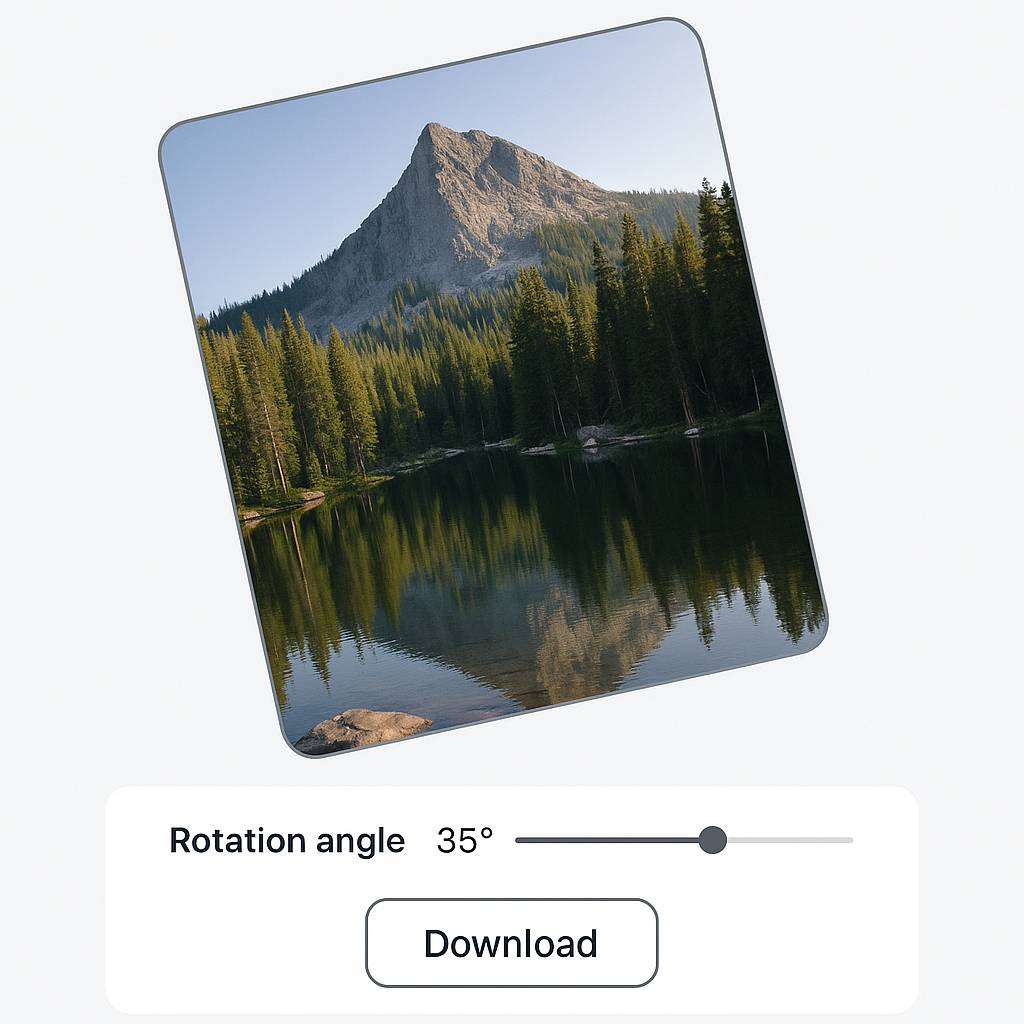
Use the rotate left/right buttons or input a custom angle
Preview your change in real time
Click “Download” and save your fixed image
And that’s all. No account. No watermark. No delay.
🔗 Related Guides to Deepen Your Understanding
If you want to explore more advanced techniques or rotation use cases, check out these blog posts on the same site:
🎯 Rotate Image by Degrees Online – Precise Control Tool: For when you need to rotate images by specific angles like 37° or 122°
🔁 Rotate Photo Online – Flip & Turn Photos in 1 Click: This blog focuses on how to flip or mirror photos for visual storytelling or design fixes
These aren’t different tools—they’re well-explained guides built around the same reliable rotation engine.
❓ FAQs – All Your Questions, Answered Honestly
What exactly is image rotation?
Image rotation is when an image is turned around its center. Whether it’s a 90° shift for portrait-to-landscape or a 180° flip, this tool handles it. More on the concept at Wikipedia’s Image Rotation.
Is it really safe to use rotate image online tools?
Yes! The one I use doesn’t save your files, doesn’t require login, and is accessible via any device. It’s privacy-friendly.
Can I rotate by 43.5° or some other odd angle?
Absolutely. You can type in the exact angle. If you need help, read the Rotate Image by Degrees blog.
Will image quality drop after rotating?
Not with this tool. Your rotated image is saved with the same resolution and clarity.
Do I have to pay or register?
No. It’s free, watermark-free, and doesn’t ask for your email.
✅ Final Thoughts – Why I Recommend Rotate Image Online
If you’re someone who handles images even semi-regularly—be it for business, personal use, freelancing, or academics—you’re going to save hours by switching to this. I speak from experience.
The SmallToolHub Rotate Image Tool is fast, free, accurate, and removes all the friction. I use it for blog headers, marketing assets, product shots, and personal albums.
Pair it with the tips from these guides:
…and you’re all set for smooth, professional visual workflows.
Start using it today, bookmark it, and thank yourself later when you’re not spending 5 minutes fixing every single photo.

