

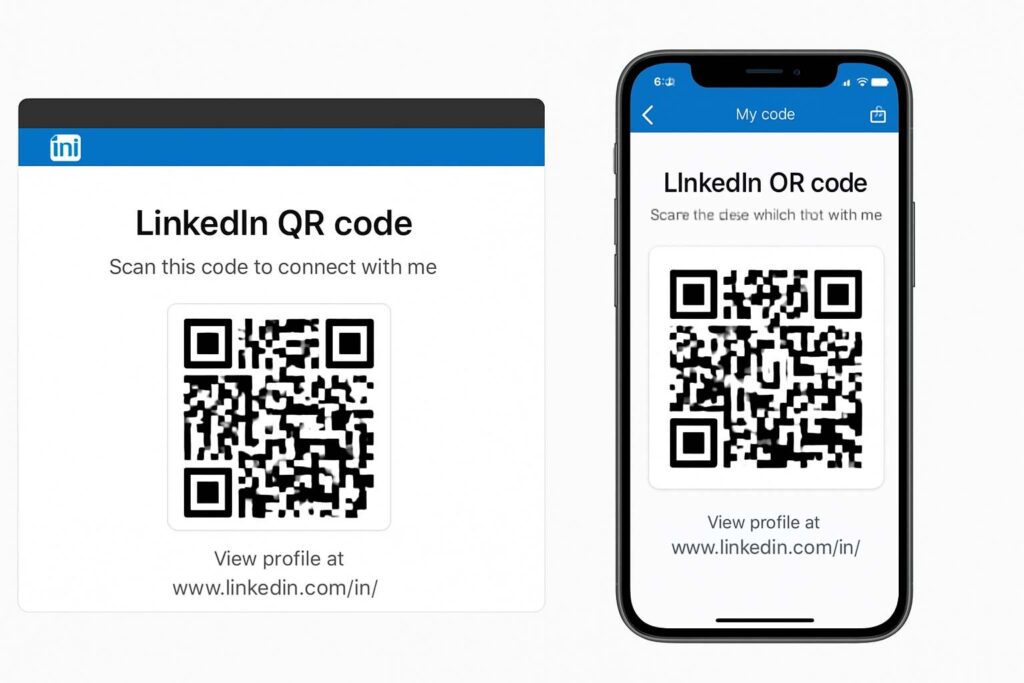
We’ve all been there—someone asks for your LinkedIn profile at a job fair, client meeting, or even casually over coffee, and you’re stuck spelling your name or fumbling through the app. That’s when I realized the real value of using a LinkedIn QR code desktop method. It felt like stepping into a faster, more organized version of networking.
But is the LinkedIn QR code desktop really better than using the LinkedIn app? Let’s explore both sides from someone who’s been using both for years.
🔍 What Is a LinkedIn QR Code?
For starters, a LinkedIn QR code is a scannable shortcut that instantly opens your profile. No typing. No spelling errors. Just scan and connect.
If you’re a student sharing your resume, a designer at a workshop, or a freelancer pitching on Zoom, this is a quick, sleek way to share your professional identity.
Why I Prefer LinkedIn QR Code Desktop
Let me start with a little story. A few months ago, I was prepping for a webinar. I wanted attendees to easily connect with me without asking for my name or link. So, I used a LinkedIn QR code desktop tool to generate a code and added it to my final slide.
The results? Over 70 new connections in an hour.
Here’s why the LinkedIn QR code desktop option just works:
✅ It’s Just More Convenient
On desktop, you’re already in work mode—emails, slides, resumes. So pulling up a QR code without switching to your phone saves time. If you’ve ever wondered how to create QR code on LinkedIn, doing it on desktop is smoother and faster.
✅ Better for Sharing in Documents
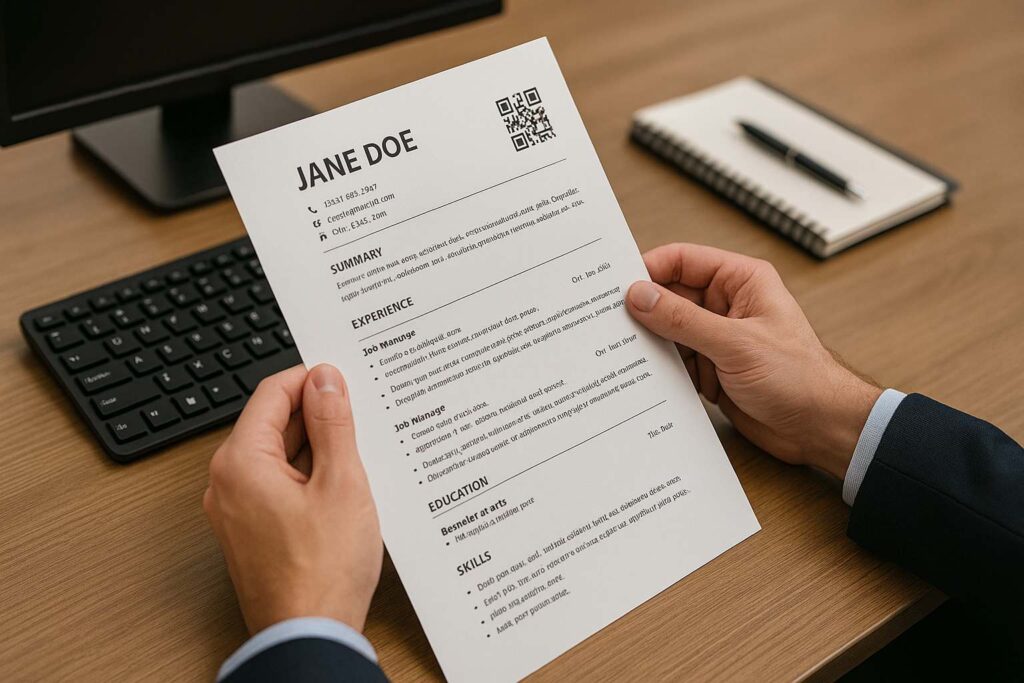
Adding your QR code to a resume, pitch deck, or portfolio is much easier on a computer. The image file is already there—you just drag, drop, and done.

📱 When the LinkedIn QR Code App Shines
To be fair, there are moments when the LinkedIn QR code app is the smarter choice.
I remember being at a co-working event and a designer I met pulled out his phone, tapped the LinkedIn search bar, and boom—his QR code popped up. I scanned it instantly. Super slick.
✅ Great for On-the-Go Networking
If you’re at a live event or even grabbing coffee with a potential client, the app gets the job done. No need for any extra tools—just open, tap, show.
✅ Scanning Others is App-Only
Unlike the desktop version, the app lets you scan someone else’s LinkedIn QR code too. That’s a big plus in fast-paced settings.
But when it comes to how to generate QR code on LinkedIn for use in professional materials, the app just doesn’t cut it. The formatting, resolution, and download options are limited.
🔧 How to Create QR Code on LinkedIn (Desktop Way)
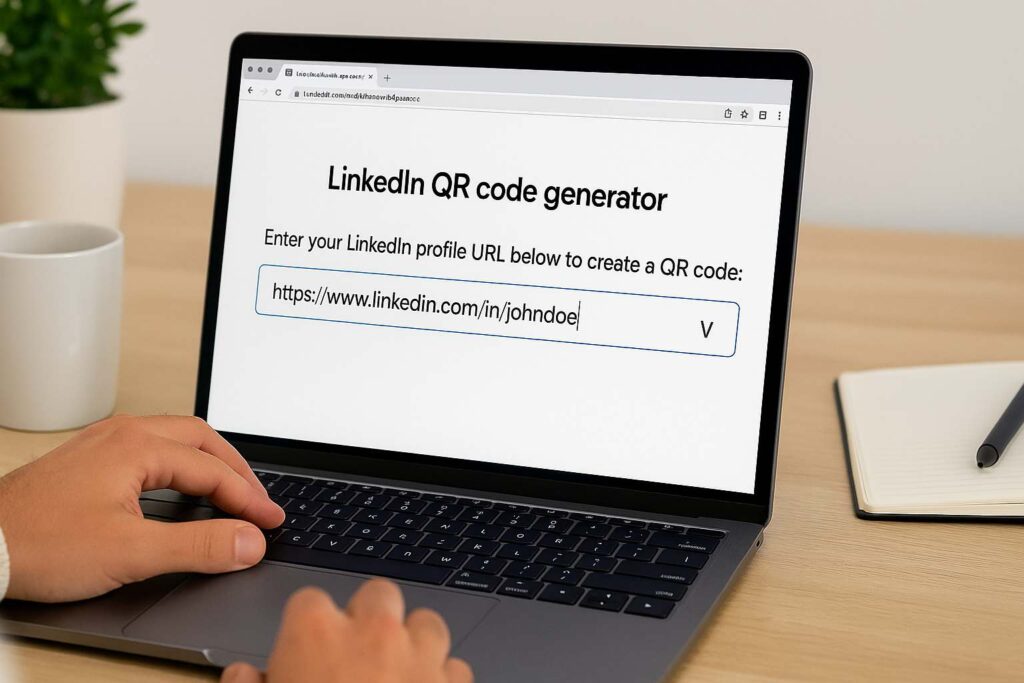
If you’re asking how to create QR code on LinkedIn, here’s how I do it every time:
Go to your LinkedIn profile on your browser.
Copy the profile URL.
Open this simple tool: LinkedIn QR Code Generator
Paste your link and hit “Generate.”
That’s it. In seconds, you have a high-res QR code you can insert into documents, resumes, presentations—anything you want.
This method has saved me hours over the past year. And since it’s all browser-based, it’s much faster than the app.
For more detailed steps, this guide helped me a lot:
How to Get Your LinkedIn QR Code Without the App – Easy Web Method
🎯 Desktop vs App – Let’s Compare
To help you decide what’s right for you, here’s a quick side-by-side comparison:
| Feature | Desktop QR Code | LinkedIn App QR Code |
|---|---|---|
| Access Method | Web browser | Mobile app |
| Scanning Others | ❌ Not possible | ✅ Yes |
| Downloadable Format | ✅ High quality | ❌ Not available |
| Resume/Presentation Use | ✅ Best suited | ⚠️ Not ideal |
| Networking On-the-Go | ⚠️ Limited use | ✅ Perfect |
So, if you mostly network online or prepare documents and slides regularly, the LinkedIn QR code desktop method wins hands down.
💡 Real-World Examples of QR Code Usage
Let’s talk real use cases—because this isn’t just for tech geeks.
🎓 Students
If you’re applying for internships or scholarships, including a LinkedIn QR code in your resume makes it super easy for recruiters to view your profile.
🎨 Designers
I recently worked with a designer who added his QR code to his Behance portfolio’s PDF version. It led to two client inquiries in a week.
📱 Social Media Managers
Managing multiple profiles? The desktop tool allows bulk generation. Try doing that with the LinkedIn QR code app—you’ll be tapping for hours.
🧰 Why the Desktop Tool Has Become My Go-To
The moment I started using the LinkedIn QR code desktop tool from Small Tool Hub, everything changed. No sign-ups. No software installation. No ads.
Just paste, generate, download. It makes sharing professional identity ridiculously simple.
Honestly, if you’re asking yourself how to generate QR code on LinkedIn without wasting time or jumping through hoops, this tool is the answer. You can check it out here:
👉 LinkedIn QR Code Generator
FAQs
1. Is the LinkedIn QR code the same across app and desktop?
Yes, the QR code links to the same LinkedIn profile. The difference lies in how you generate or access it—LinkedIn QR code desktop gives more control over format and sharing.
2. Can I scan LinkedIn QR codes on desktop?
Unfortunately, no. Scanning is limited to the LinkedIn mobile app. That’s one place where the LinkedIn QR code app still leads.
3. Which method is better for resumes and portfolios?
Definitely the LinkedIn QR code desktop route. It allows you to download and format the QR code with better quality for printing and document use.
4. How can I generate a LinkedIn QR code without the app?
Just use a browser tool like Small Tool Hub’s QR Code Generator. No app needed. This guide also explains the full process:
How to Get Your LinkedIn QR Code Without the App – Easy Web Method
5. What’s the easiest way to create a QR code on LinkedIn?
Use the desktop. Copy your LinkedIn URL, paste it into a generator, and hit download. It’s that simple. For full steps, here’s a helpful guide:
How to Create QR Code for LinkedIn Profile on Desktop & Mobile
6. Can I use the QR code in my email signature?
Absolutely! I do this myself. Just generate your LinkedIn QR code desktop version, resize it, and add it to your email signature image block.
7. Where can I learn more about desktop apps?
Check out Desktop App – Wikipedia for technical info on how desktop tools differ from mobile applications.

